
Documentation Locomotion Framework
Installation, getting started and full reference for the plugin.
How it works in two minutes
Locomotion Framework animates a third-person character: walking, running, stopping, turning around, jumping, getting over obstacles, drawing a weapon and aiming. There is nothing to wire up. You sort your animations into a grid, and the plugin picks the right one at the right time.
The plugin is replicated: your characters stay in sync in multiplayer, on the host and on clients, with no extra network setup on your part.
The one thing to remember
The whole plugin comes down to two grids that look and read the same way. A cell is always where its row meets its column, clicking it opens it, and right-clicking it shows what you can do with it.
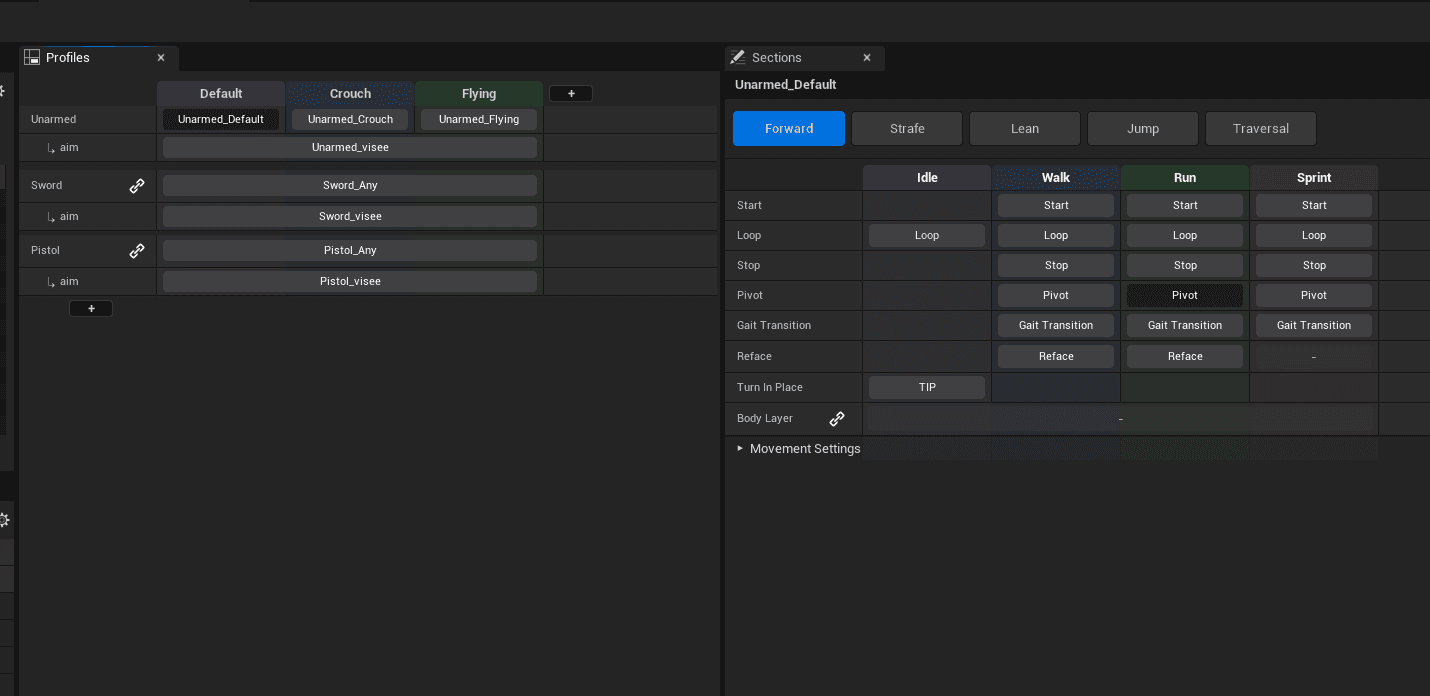
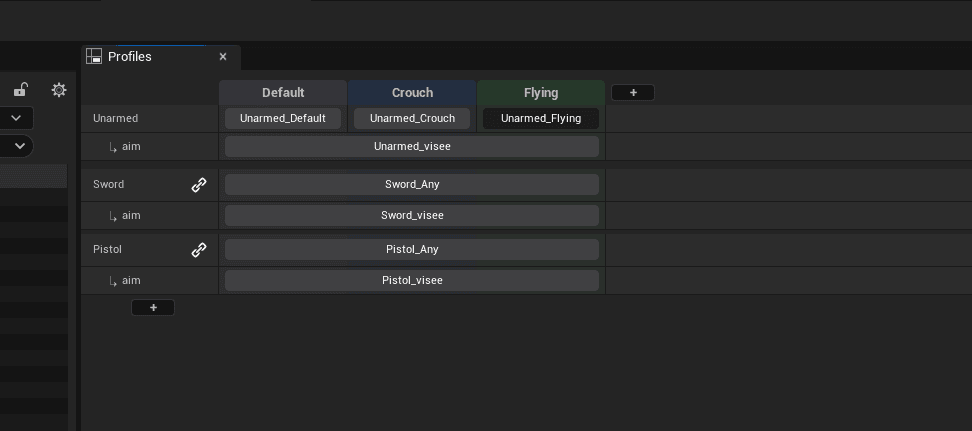
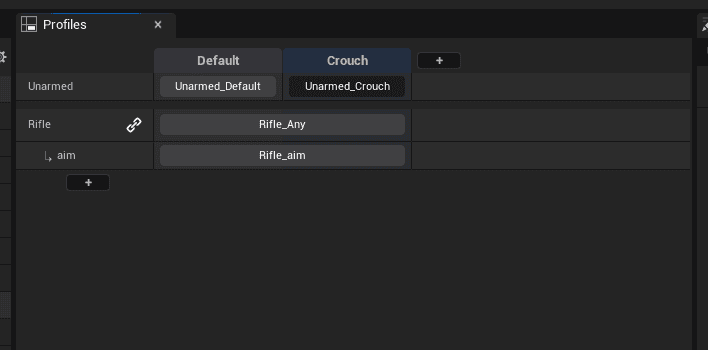
The first grid defines who your character is. There is one row per profile (unarmed, rifle, sword) and one column per state (standing, crouched). Each cell is your character in that specific situation, such as holding the rifle while crouched.
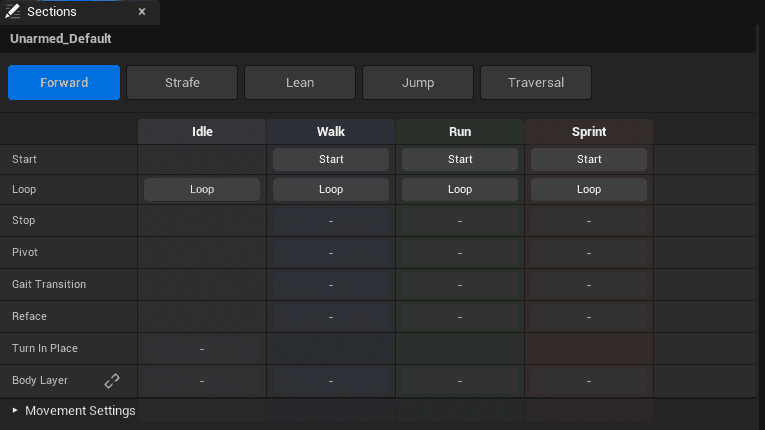
The second grid lives inside a profile and defines what it plays. The columns are gaits: Idle, Walk, Run, Sprint. The rows are moments: the cycle, the start, the stop, the pivot. Again, each cell is where the two meet: “what my character plays when it is running and comes to a stop”.
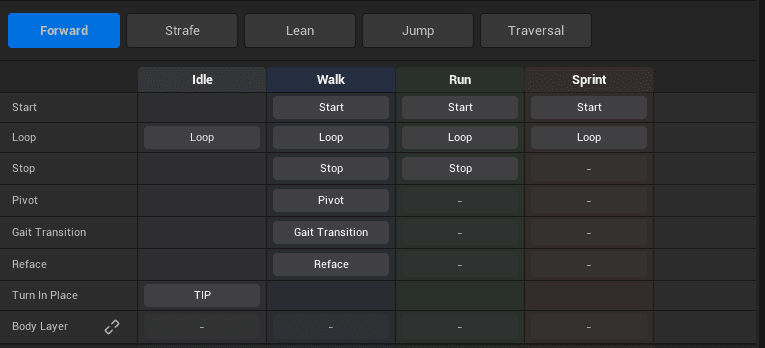
The second grid is the one you’ll open first. A new character has only one profile, so until you add a weapon or a posture, the first table is a single cell. Fill in the cells you need: an empty cell plays nothing and breaks nothing. That holds true from the first page of this documentation to the last.
What you need
- Unreal Engine 5.8.
- A character: a Skeletal Mesh and its skeleton. Any rig works.
- Animations. At a minimum, an idle and a run cycle. You can add the rest whenever you like.
- No C++. The plugin ships precompiled, so a Blueprint-only project is fine.
Animations with root motion save you time: the plugin can work out speeds from them, make a stop end at the right distance and time a pivot correctly. Everything also works without root motion, but you then have to set those values by hand.
Installing the plugin
- 1On the plugin’s FAB page, click “Add to My Library”. The plugin is added to your Epic library.
- 2Open the Epic Games Launcher, go to the Unreal Engine tab, then Library. The plugin appears at the bottom, under “Vault”.
- 3Click “Install to Engine” and choose your Unreal Engine version.
- 4Open your project and go to Edit ▸ Plugins. Search for Locomotion Framework and tick its checkbox.
- 5When the editor asks you to restart, accept.
The plugin also enables the six plugins it depends on: Enhanced Input, Editor Scripting Utilities, Animation Locomotion Library, Animation Warping, Motion Warping and Niagara. You don’t need to do anything; they are ticked automatically along with it.
If the plugin is greyed out in the list, its version doesn’t match the engine’s. Reinstall it from the launcher and choose the exact engine version your project uses.
The plugin window
After the restart, the Locomotion Framework window opens automatically. This is where you create characters. You can reopen it at any time from Tools ▸ Locomotion Framework, and the “Don’t open at startup” checkbox in its header stops it from opening at startup.
Creating your character
This window builds the entire character in one click. Fill in five fields.
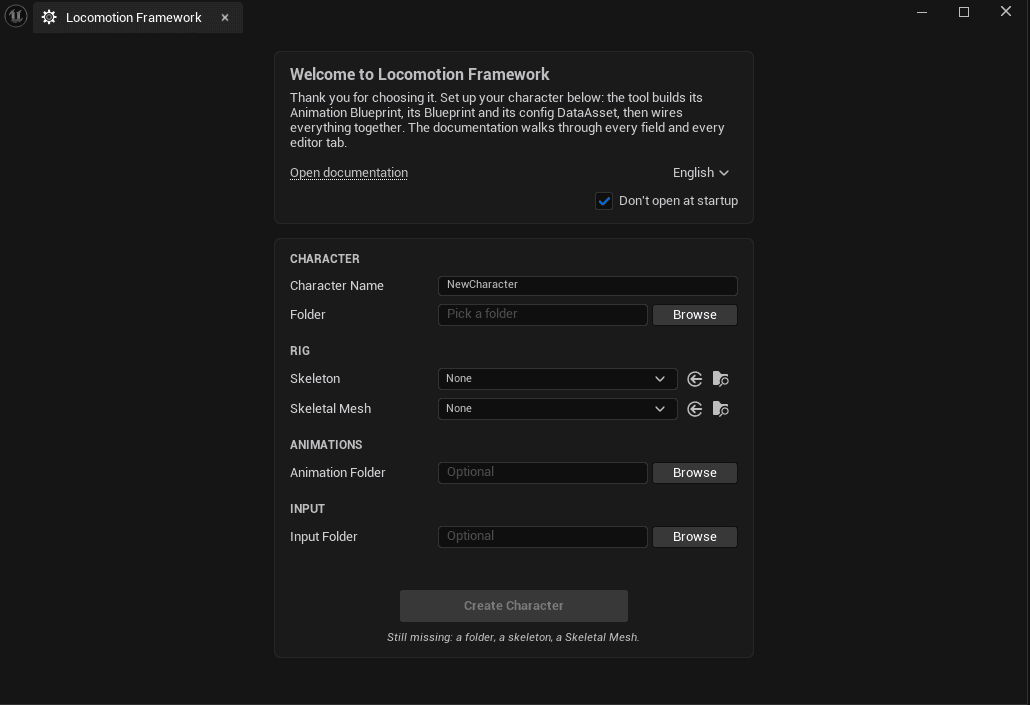
| Field | What it’s for |
|---|---|
| Character Name | The base name. The plugin uses it to name three assets: ABP_<Name>, BP_<Name> and DA_<Name>. |
| Folder | The folder where everything is created. |
| Skeleton | Your character’s skeleton. |
| Skeletal Mesh | The mesh the character will use. |
| Animation Folder | The folder that contains your animations. The configuration editor opens its content browser directly in this folder, so you don’t have to browse to it for every clip. |
| Input Folder | An existing folder of Input Actions and an Input Mapping Context to reuse, instead of duplicating a set for every character. A missing action doesn’t stop the character from being created: the Message Log tells you which one to reconnect. |
The Create Character button stays greyed out until a folder, a skeleton and a mesh are all set; the line below the button tells you which one is missing. Once you click it, the form clears: that means the character was created successfully.
The five things it creates
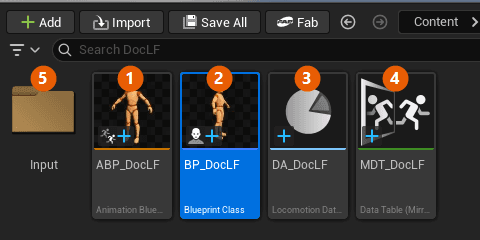
| Asset | What it is |
|---|---|
| ① ABP_<Name> | The Animation Blueprint. It contains a single node, LF Locomotion Framework, connected to the Output Pose. All of the locomotion happens inside it. |
| ② BP_<Name> | The character you place in the level. The mesh, the Animation Blueprint and the configuration are already hooked up to each other. |
| ③ DA_<Name> | The configuration. This is the only asset you’ll actually edit. It starts out empty. |
| ④ MDT_<Name> | The mirror table, which defines which left bone corresponds to which right bone. It is generated for your skeleton and assigned automatically. |
| ⑤ Input/ | The input mapping and the character’s ten actions: move, camera, walk, sprint, strafe, jump, aim, equip, crouch and mount. These are your own copies, so remap them however you like. |
The Animation Blueprint has only one node, but you’re free to add more after it: Foot Placement, a Control Rig, or your own nodes.
The configuration editor
Double-click your DataAsset. It opens in an editor with five panels, which you can move and close like any other Unreal tab.
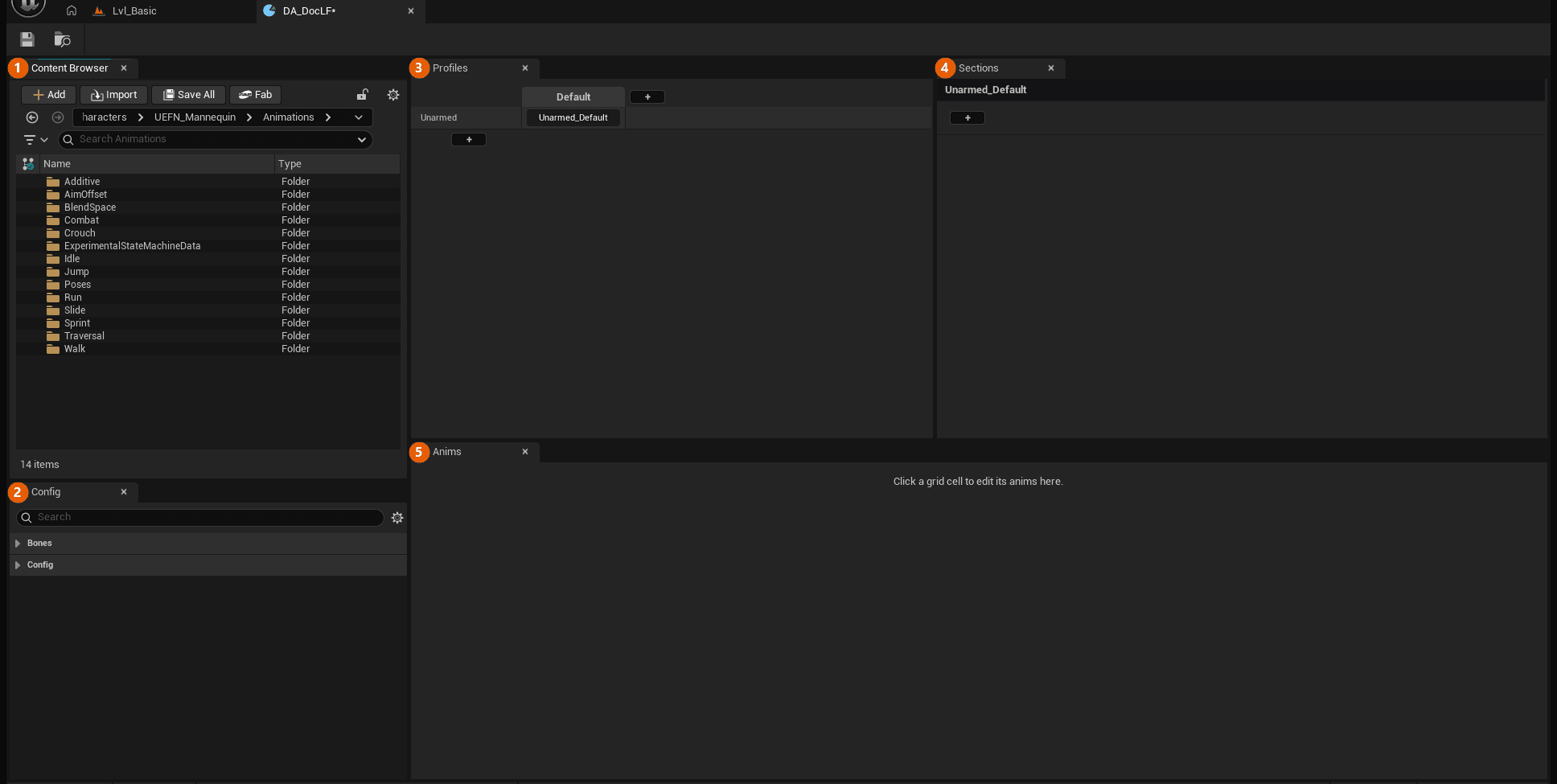
| Panel | What it contains |
|---|---|
| ① Content Browser | A built-in content browser, already open on your animation folder. You can grab your clips from here without leaving the window. |
| ② Config | Settings that apply to the whole character: the bones it uses, mirroring, debugging and blends. They don’t depend on the weapon or the posture. |
| ③ Profiles | The table of character variants, with one row per weapon and one column per posture. A new character has just one, Unarmed_Default. |
| ④ Sections | The families of movement: moving forward, strafing, jumping, traversal. This is where you’ll spend most of your time. |
| ⑤ Anims | The contents of the cell selected in the grid. It stays empty until you click a cell. |
Profiles: variants of your character
A profile is your character in a given state: unarmed, holding a rifle, crouched, aiming. The Profiles panel is a two-way table, with one row per weapon and one column per posture.
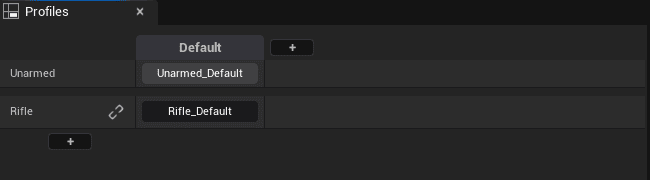
- The + on the left adds a row, which means a weapon.
- The + at the top adds a column, which means a posture.
- Clicking a cell opens that profile, and the rest of the window then shows that profile.
- Right-clicking a cell lets you rename, copy, paste or delete it.
A simple character has only one profile, and you’ll never need to touch it. Weapons and aiming are covered much later in this documentation.
Crouch, Prone: switching to a low posture
A low posture is a column of the table like any other (Crouch, Prone, or any lowered profile), except that it also shrinks the character’s capsule. To switch to one, the plugin’s component provides the LF Toggle Low Posture Blueprint node, which you connect directly to an input, with one node per key.
| Input | What it sets |
|---|---|
| Half Height | The capsule’s half height in this posture, in cm. For example, 65 for a crouch and 10 for prone; adjust these to your character. |
| Posture | The name of the column in the Profiles table: Crouch, Prone… If left at None, the node does nothing. |
For gameplay, LF Enter Low Posture and LF Stand Up force a specific state instead of toggling, for example to stand the character up before a sprint or a cutscene. Get Low Posture returns the current posture (None when standing), and Is In Low Posture tells you whether the character is in any low posture.
Under the hood, this uses Unreal’s own crouch, so Is Crouched and the On Start Crouch / On End Crouch events work as usual. In both of these events, call Notify Native Crouch Height Changed: it prevents the character from popping slightly as seen by other players. The BP_CharacterLF created by the Character Factory is already set up this way.
Sections: adding a family of movements
A new character can’t play anything yet, because it has no sections. You add the ones you need, one at a time. The + button in the Sections panel lists the ones that are missing.
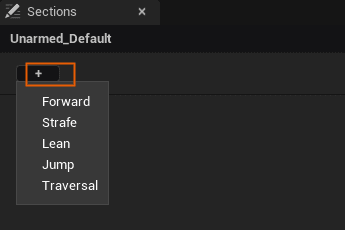
| Section | What it adds |
|---|---|
| Forward | Moving in the direction the character is facing. The foundation for everything else. |
| Strafe | Moving in one direction while facing another. |
| Lean | Leaning the body into turns. |
| Jump | Jumping: take-off, fall and landing. |
| Traversal | Getting over obstacles: mantling, climbing, jumping over them, catching ledges. |
| Equip | Drawing and holstering. Only appears on a weapon profile. |
| Drive | The seated pose and steering, when the character is riding a mount or driving a vehicle. |
The menu only lists sections that haven’t been added yet, and only those that make sense for the current profile: a profile without a weapon never offers Equip, and a weapon profile never offers Lean. Once a section is added, it disappears from the menu and gets its own tab instead.
Start with Forward. Removing a section later doesn’t erase anything: its animations stay in the asset and come back if you add the section again.
Cells: making them play
A new cell is inactive. It shows a dash and won’t play anything until you tell it what to do, which you do with a right-click.
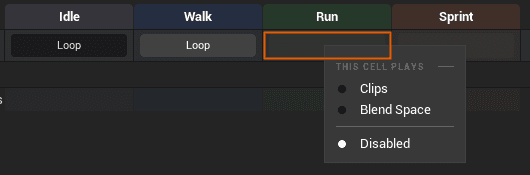
| Mode | What the cell plays |
|---|---|
| Clips | The animations you assign to it, one by one. This is the usual case. |
| Blend Space | A blend space that handles the blending between directions and speeds itself. One asset instead of several clips. |
| Additive | An additive kick layered on top of whatever is already playing, instead of a full animation. Available on starts and stops. |
| Disabled | The cell is switched off in game. Its settings are kept: it’s an on/off switch, not a deletion. |
The available modes depend on the row: a cycle offers Clips or Blend Space, while a start offers Clips or Additive. Read the menu labels rather than relying on item positions.
The same right-click menu also lets you switch off an entire column or row. “Disable” takes it out of play without erasing anything, while “Delete” removes it from the grid; its animations come back if you add it again.
Nothing erased also means nothing freed. A disabled cell, or a deleted row or column, keeps its animations in the asset, and those clips are loaded into memory along with the profile. They don’t play, but they still take up memory. That’s what makes disabling so convenient while you’re experimenting; before you package your game, clear out the slots you no longer need.
The Anims panel: assigning animations
Click an active cell. The Anims panel shows its contents.
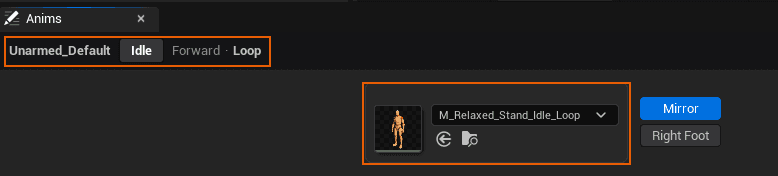
The breadcrumb
The top line shows exactly what you’re editing: the profile, the gait, the section and the state. The grid fills up quickly, and this is the only thing that tells you for sure where you are.
A cell contains several slots
A cell almost never holds just one animation. A start has six (three directions, two feet), and a strafe cycle has eight. Idle is the exception, with just one. The panel lays the slots out like a compass: the top card is forward, and the bottom ones are backward.
Three ways to fill a slot
- Drag the clip from the content browser onto the field.
- Open the dropdown and search for the clip by name.
- Select the clip in the content browser, then click the arrow to the left of the field to use the selected asset.
Start Position
Many slots have a Start Position field: the time in the clip, in seconds, where playback starts. Use it when your animation begins with a lead-in that you don’t want to replay.
The link button
Between two foot slots there’s a small chain-link button. When it’s closed, a single clip plays whichever foot is leading. When it’s open, each foot gets its own clip. Click it if your animation only exists for one side.
You can also fill in just one foot and leave the other empty, as long as Auto-Mirror Missing is enabled in the Config panel: the plugin then plays the existing clip mirrored. This requires the mirror table, which was already assigned when the character was created.
Gaits and their speeds
The + to the right of the columns adds a gait: Walk, Run or Sprint. Each one becomes a column with its own Loop row to fill in: the walk cycle under Walk, the run cycle under Run, and the sprint cycle under Sprint.
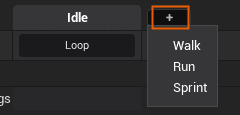
None of them is required: a character that only ever walks just needs Walk.
Movement Settings
An animation alone isn’t enough. You also have to tell the character how fast it moves, or its feet will slide. The Movement Settings pane, below the grid, has one column per gait.
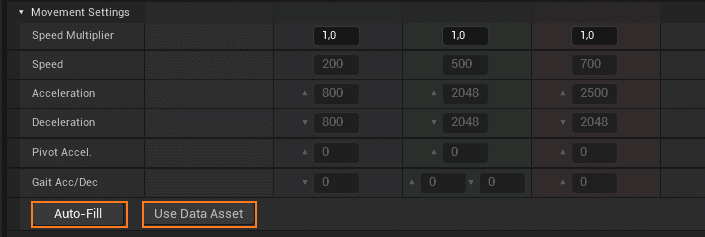
| Setting | What it does |
|---|---|
| Speed Multiplier | Speeds the gait up or slows it down, animation included. Set it to 1.2 to move 20% faster without foot sliding. |
| Speed | The movement speed for this gait. |
| Acceleration | How quickly the character reaches that speed. |
| Deceleration | How quickly it comes to a stop. |
| Pivot Accel. | The acceleration during a pivot, usually higher than when starting. At 0, the normal acceleration is used. |
| Gait Acc/Dec | How quickly the character changes gait. ▲ is the acceleration when speeding up into this gait, ▼ the deceleration when slowing down into it. At 0, the Acceleration and Deceleration above are used. |
Walk only has ▼ and Sprint only has ▲, since you can only slow down into a walk and only speed up into a sprint. Run has both. Why a separate value? Without it, going from a run to a walk would use Deceleration, which is tuned for a full stop and is often too abrupt for a simple gait change. This row only appears if the profile has at least two gaits.
Auto-Fill: let the plugin measure
The Auto-Fill button reads your animations and fills in Speed, Acceleration and Deceleration for you. Here’s exactly what it measures:
- Speed: the distance the Loop clip travels divided by its duration. This is the speed the animation actually moves at.
- Acceleration: the time the Start clip takes to reach that speed. It measures only the ramp-up, not the total length of the clip.
- Deceleration: the same measurement in reverse, on the Stop clip.
Auto-Fill only works if your animations have root motion, because it measures how the root moves. Without root motion, it doesn’t write anything. In that case, tick Use Data Asset and enter the values by hand.
You can change these values while a game is running in PIE and see the result immediately; there’s no need to recompile.
The Strafe tab has its own Movement Settings, and its Auto-Fill measures the strafe clips, not the Forward ones. The two sets of animations don’t have the same speed or the same braking, so sharing a single value between them would be wrong.
Forward: moving forward
Forward is the basic locomotion: the character moves in the direction it’s facing. It’s the only section that can never be disabled; all the others build on top of it.
The + below the last row adds a state. Nine are available, and the following pages cover them one at a time.
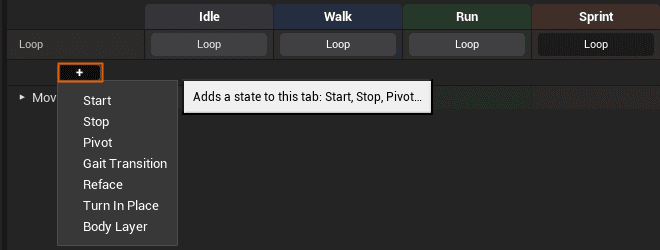
| State | When it plays |
|---|---|
| Loop | The cycle, while the character is moving at this gait. |
| Start | The start, when the character sets off from a standstill. |
| Stop | The stop, when it comes back to a standstill. |
| Pivot | The turnaround at full speed, when it heads back the other way. |
| Gait Transition | The change from one gait to another, for example from walking to running. |
| Reface | The switch between running straight ahead and moving while facing another direction. |
| Turn In Place | Turning on the spot, at a standstill. |
| Body Layer | A layer added on top of everything else: breathing, fatigue, injury. |
| Enter | Entering this column of the Profiles table, for example when the character crouches or stands up. |
Idle: standing still
Idle is the cell where the Loop row meets the Idle column: what the character plays when it isn’t doing anything. It has a single slot for a single animation, and the same clip plays whichever foot the character has just stopped on.
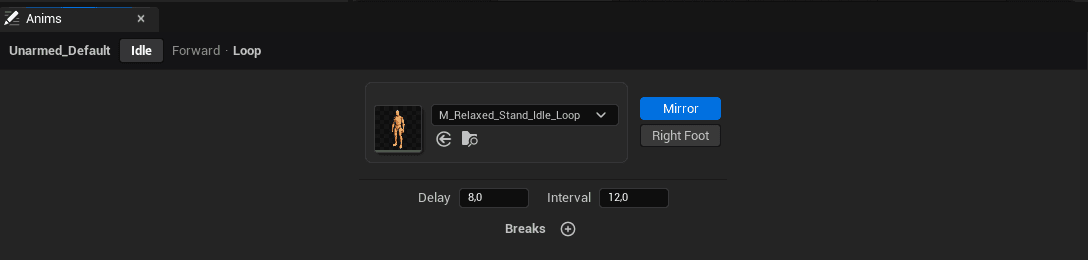
Mirror and Right Foot
| Button | What it does |
|---|---|
| Mirror | Plays Idle mirrored when the right foot is leading, so the same clip covers both sides. Breaks and the straight-ahead start follow this setting too. Mirroring requires the asset’s mirror table. |
| Right Foot | Tells the plugin which foot is forward in your clip: when it’s on, it’s the right foot, and mirroring is based on that side. The button stays greyed out while Mirror is off. |
Breaks
When a character just breathes on a loop for thirty seconds, players notice. Breaks are short animations that bring the character to life (looking around, stretching, checking its weapon), played from time to time between loops of the idle. The + below the slot adds as many as you like. There’s nothing to configure per clip, just the animation itself. The plugin picks one at random, never playing the same one twice in a row, and cuts it off as soon as the player moves.
| Setting | What it does |
|---|---|
| Delay | How long the character must stand still before the first break. |
| Interval | The time between two breaks. The first break waits for the Delay. |
A break must start and end on the idle pose, because that’s where the plugin picks up again. A clip that ends anywhere else causes a visible pop when the idle resumes. If you leave the list empty, there are simply no breaks; there’s nothing to untick.
Enter: entering a state
Enter controls what happens when the character changes column in the Profiles table: from standing to crouched, from crouched to standing, or to any other state you’ve created. The transition belongs to the destination column: switching to Crouch plays Crouch’s Enter, and standing back up plays Default’s.
You add the row with the + in the Forward tab or the Strafe tab. It’s the same row in both tabs, so adding it in one also shows it in the other. A game that only uses Strafe can therefore use it just the same.
Blend Time
The field next to the row name is the duration of the transition into this state, in seconds. It applies both at a standstill and while moving, and it also works without a clip: for a crouch transition that’s simply smoother, add the row, leave the cell empty and set this field. At 0, the Phase Blend Time is used.
The clip
The row’s Idle cell opens the Anims panel with the slot for the transition clip: crouching down for Crouch, standing up for Default. It plays when the character changes state at a standstill, including during the end of a Stop once the character has stopped moving, in which case it cuts the stop short. If the character moves or jumps during the clip, it sets off immediately, with a blend. While moving, there’s no clip: only the Blend Time applies.
Use an in-place clip that ends on the new state’s Idle pose: the character doesn’t move during the transition, and the plugin takes over again on Idle when the clip ends.
From
A state isn’t always reached from the same pose: going from Crouch to Swim doesn’t start from the same position as going from Default to Swim. In the Anims panel of the Enter row, the + next to “From a specific profile” adds a transition that only plays when coming from a specific column. The From menu lists the columns in your table, and each transition has its own Blend Time and its own clip. When the character comes from that column, this transition replaces the Enter row.
A weapon with its own animations in a column also has its own Enter row; if that row is left empty, only the Phase Blend Time applies. A weapon set to The posture's legs uses the Enter of the Unarmed row.
Start: setting off
Without a start clip, the character snaps from a standstill straight into its run cycle and slides through the first few steps. A start replaces that moment with a proper acceleration.
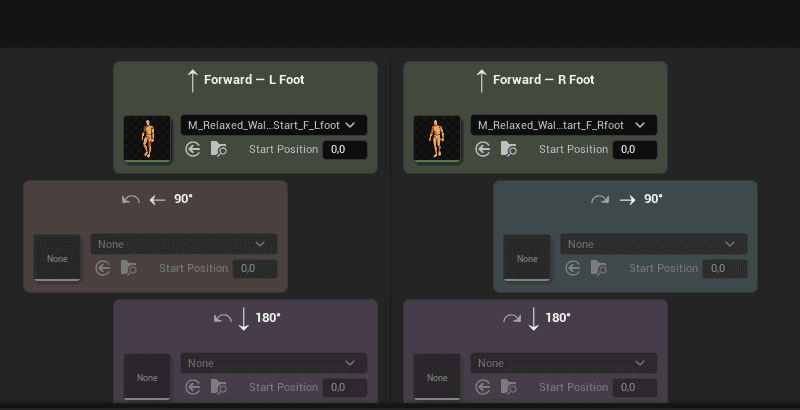
There are six slots, laid out like a compass seen from above:
- Forward — L Foot and Forward — R Foot: setting off straight ahead, on the left or right foot.
- 90° left and 90° right: setting off to the side, with the quarter turn built into the clip.
- 180° on both sides: setting off backwards, including the turnaround.
Which of the two Forward starts plays depends on Idle’s Mirror button. With Mirror on, the standing pose actually matches the foot the character stopped on, so it sets off on that same foot. With Mirror off, the pose is the same on both sides, and the direction the player pushes decides: left plays the left-foot start, right plays the right-foot start. This doesn’t apply to the 90° and 180° starts, which describe a side, not a foot.
Each slot has its own Start Position. Filling in the two Forward starts is enough to feel the difference. Empty directions don’t play anything wrong; the character simply sets off directly into its cycle.
Right-clicking a start cell also offers Additive: instead of a full animation, an additive kick layered on top of the cycle. It’s useful when you don’t have real start clips but want to take the floatiness out of setting off.
Stop: coming to a halt
There are only two slots: one clip per foot, each with its Start Position. The plugin picks one based on the foot the character was running on when you released the input.
A stop ends on one foot, left or right, and the pose of that stop clip determines Idle’s foot. Idle has only one slot: with Mirror on, it plays mirrored when the leading foot isn’t the one in the clip; with Mirror off, it plays unchanged on both sides.

Stopping in the right place
A stop should end where the character comes to rest, not two steps further on. The plugin achieves this by reading the clip’s motion: it enters the clip at the point that matches the distance the character still has to cover.
If your clips have no root motion, tick Use Distance Curve in the Config panel and enter the curve’s name in Distance Curve Name. The plugin then reads the remaining distance from that curve in your animations instead of from their motion. The curve is in centimetres and negative (it’s the distance still to cover), and it crosses zero at the moment the character comes to rest.
The same rule applies as for the pivot: a Start Position greater than 0 on the cell overrides the automatic alignment. Leave it at 0 to let the plugin choose its own entry point.
| Setting (Config) | What it does |
|---|---|
| Stop Handoff Distance | Over the last few centimetres before the stop, the clip plays out on its own instead of being matched to the remaining distance, which would otherwise make the end jitter. 5 cm by default: raise it if the end shakes, lower it if the feet slide. |
| Use Distance Curve | Reads the remaining distance from a curve in your clips instead of from their motion. |
| Distance Curve Name | The name of that curve in your clips. |
Pivot: turning around
A pivot is a turnaround at full speed. Without it, a character moving at speed that’s asked to reverse direction spins on the spot while still playing its run cycle, and it slides.
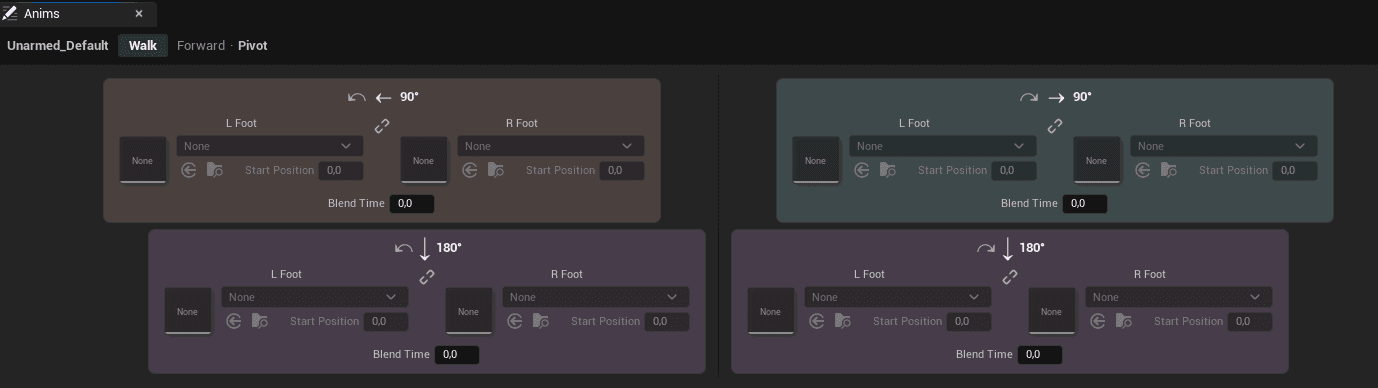
There are four cards (90° left, 90° right, 180° left, 180° right), each with one slot per foot, a link button and a Start Position.
The 180° aligns itself
A full turnaround involves slowing down, and the plugin uses that as an anchor. It reads the clip’s motion, finds the plant (the moment the foot lands and the movement reverses), and enters the animation just in time for that plant to happen in the right place.
If the clip has no root motion, give it a distance curve and enter the curve’s name in Config ▸ Distance Curve Name. The curve must be in centimetres, negative before the plant, and cross zero at the moment of the plant. A curve that’s already at zero at the start is ignored, since it doesn’t describe any approach.
With neither root motion nor a curve, the plugin falls back on Pivot Start Position 180, which you can set per gait in the Config panel. The clip then enters at a fixed time that you tune by eye.
⚠ Leave the cell’s Start Position at 0 if you want this automatic alignment. As soon as it’s greater than 0, your value takes over: the plugin enters the clip at exactly that time and no longer aligns anything, either from root motion or from the curve. This is the most common reason a 180° never lines up.
The 90° is tuned by hand
A quarter turn happens without slowing down. The character keeps its speed, so there’s no deceleration to align with. The plugin doesn’t try to retime it: it enters the clip at the cell’s Start Position and lets it play freely.
That Start Position therefore decides everything: raise it to make the foot plant earlier, lower it to leave more momentum. Tune it by eye, once per clip.
The 90° set isn’t only for turns of exactly 90°: it covers anything beyond Pivot Trigger Angle that falls short of a full turnaround. The same clip plays for a 60° turn as for a 130° one, so tune the Start Position for the angle that comes up most often in your game.
Blend Time
Below each pair of cells, Blend Time sets the duration of the blend into that pivot clip. There’s one value per card (90° left, 90° right, 180° left, 180° right), because both feet of the same pivot blend in the same way. In strafe, each compass direction has its own.
At 0, the cell doesn’t override anything, and the profile’s Phase Blend Time is used. The Blend Time that applies is the one from the cell that ACTUALLY plays: if an empty 90° falls back on the 180°, it’s the 180°’s Blend Time that counts.
| Setting (Config) | What it does |
|---|---|
| Pivot Trigger Angle | The angle beyond which a turn triggers an actual pivot animation. |
| Pivot Handoff Distance | The same idea for pivots: over the last few centimetres of braking, the pivot clip plays out on its own. 10 cm by default, because a pivot hands back control earlier. |
| Pivot Reentry Unlock Progress | How far into a pivot a second one can follow on the same side. Raise it if the character pivots again too early. |
| Pivot Start Position 180 | The last resort for the 180°, per gait: only used when the clip has neither root motion nor a distance curve. |
Gait Transition: changing gait
Without this state, going from a walk to a run just cross-fades between the two cycles: the character hasn’t sped up, it has simply switched animations. A transition clip makes the change feel real.
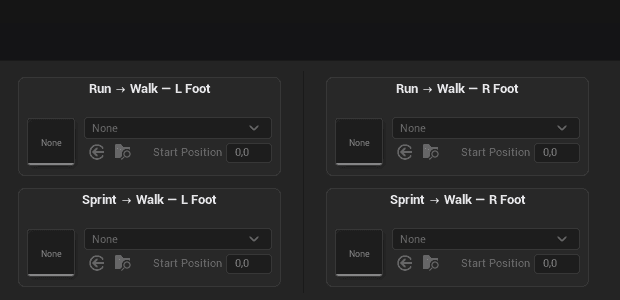
Each card shows the direction of the transition, such as Run → Walk or Sprint → Walk. The column you’re in is the destination gait, so the Walk column contains everything that leads into walking. Each transition has two slots, depending on which foot it lands on.
Reface: changing facing while moving
Reface plays the switch between running straight ahead and moving while facing another direction, and back again. Without it, the upper body swings around rigidly in one piece.
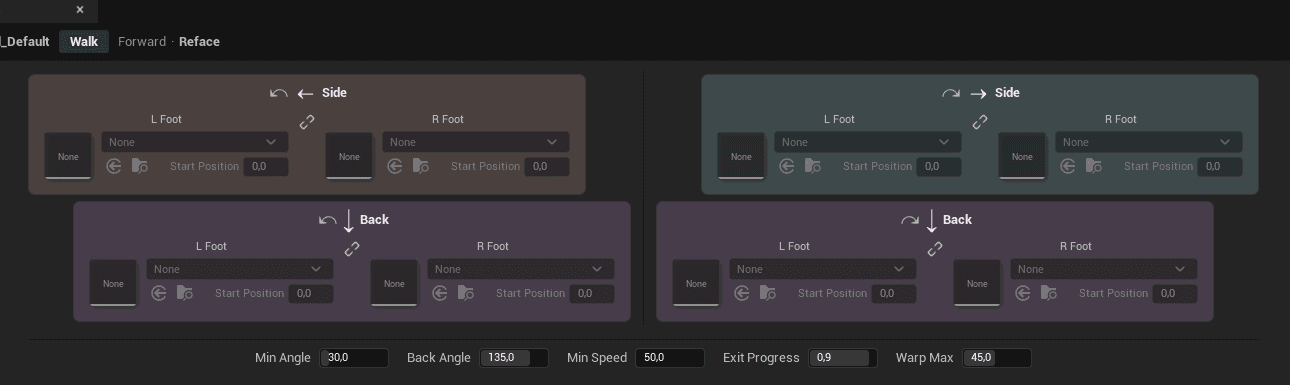
There are four directions (left side, right side, back left, back right), each with one slot per foot. The bottom row controls when a reface triggers:
| Setting | What it does |
|---|---|
| Min Angle | The angle difference from which a reface plays. |
| Back Angle | The angle beyond which the “back” version plays instead of the side one. |
| Min Speed | The speed above which the character is considered to be moving. |
| Exit Progress | How far into the clip another reface can take over. |
| Warp Max | The maximum rotation the plugin adds to the clip to match the exact angle, in degrees. |
Turn In Place: turning on the spot
At a standstill, there’s no movement to hide a rotation: without an animation, the character turns like a statue on a turntable. Turn In Place plays an actual turning step. This row only has a cell under Idle, the only place where it makes sense.
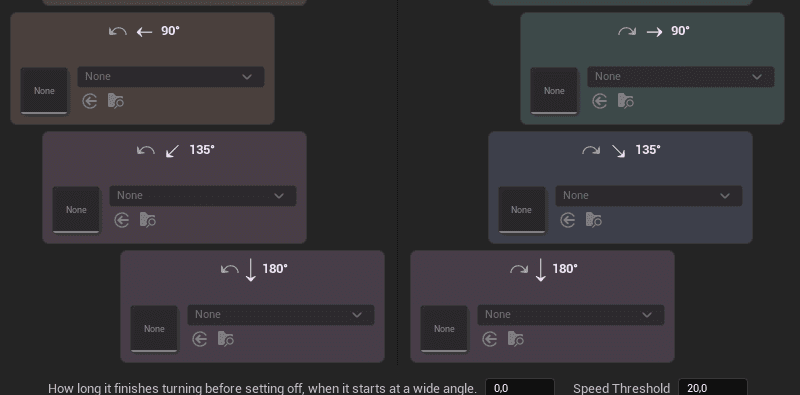
There are four angle steps (45°, 90°, 135° and 180°) on the left and on the right. The plugin picks the step closest to the angle the character needs to turn.
You don’t have to fill in all four: an empty step falls back on the nearest one that’s filled. A single 90° clip on each side already gives a decent result.
| Setting | What it does |
|---|---|
| Speed Threshold | Below this speed, the character is considered to be standing still and can trigger a turn in place. |
| Start Freeze Time | How long the character keeps turning before it sets off, when it starts moving from a large angle. At 0, it sets off immediately. |
Strafe: moving without turning
When strafing, the character keeps facing the same way (towards the camera or a target) while moving in another direction. The section has the same states as Forward: Loop, Start, Stop, Pivot and Reface.
The big difference is the number of animations. There’s no single strafe cycle: you need one per direction. The panel lays them out as a compass.
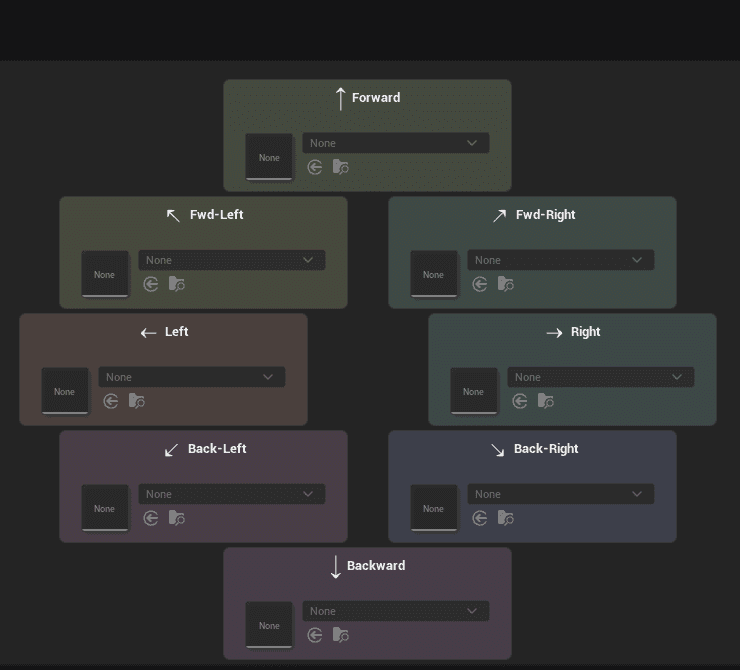
There are eight directions: forward, forward-left, forward-right, left, right, back-left, back-right and back.
Yaw Warp: covering the angles in between
Eight directions don’t cover the full 360°: there’s still a gap between two clips. Yaw warp rotates the mesh slightly to fill that gap, instead of asking you for sixteen animations.

| Setting | What it does |
|---|---|
| Yaw Warp | Enables the correction. When unticked, only the eight authored directions play. |
| Max | How far this rotation can go, in degrees. Half an octant is 22.5°; beyond that, the twisting becomes visible. |
| Speed | How smoothly one direction transitions to the next. |
The idle isn’t duplicated: the Strafe tab’s Idle column uses the same animation as Forward’s. A character only has one idle.
Lean: leaning into turns
Lean tilts the character while it turns, like a cyclist taking a bend. It’s the only section without a grid: it doesn’t depend on the gait, and its settings apply to all four gaits at once.
The Mode row at the top lets you choose between two ways of producing the lean: Procedural or Blend Space. They’re mutually exclusive, and one of them is always active. The tab opens on Procedural.
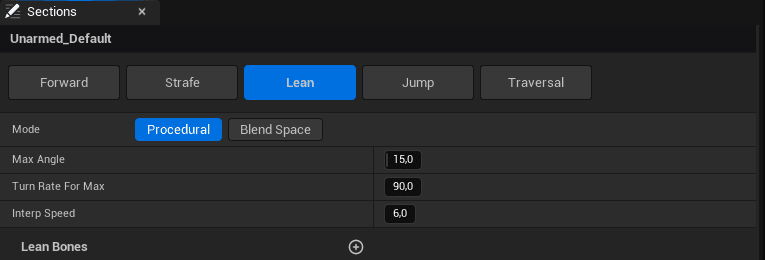
Procedural: the plugin tilts the bones
No animation needed. The plugin calculates an angle, which grows the faster the character turns and moves, up to Max Angle. It then applies that angle itself to the bones you list in Lean Bones, each with its own axis and share of the angle. If the list is empty, it falls back on spine_01 and neck_01.
Blend Space: the lean comes from your animations
This mode replaces the bones with a slot: Lean Blend Space takes an additive 2D blend space, applied on top of the locomotion pose. The plugin samples it automatically, with X as the turn (−1 left, +1 right) and Y as the acceleration (−1 braking, +1 accelerating), so there’s nothing for you to wire up. Max Angle and Lean Bones are hidden: your blend space determines the pose.
| Setting | What it does |
|---|---|
| Max Angle | Procedural only. The maximum lean angle, in degrees. 15 is a good starting point. |
| Lean Bones | Procedural only. The bones that lean, each with its own axis and weight. Spreading the angle along the spine gives a different result from putting it all on one bone. |
| Lean Blend Space | Blend Space only. The additive blend space that provides the lean. |
| Turn Rate For Max | Both modes. The turn rate, in degrees per second, at which the lean reaches its maximum. Lower it and the character leans even in gentle turns. |
| Turn Dead Zone | Procedural only. How far the character must deviate from its path before it starts leaning, in degrees. A quick back-and-forth stays around that path, so it no longer causes a lean. 0 removes the threshold. |
| Interp Speed | Both modes. How smoothly the character leans in and straightens up. |
| Reference Speed | Both modes. The speed at which the lean takes full effect; below it, the lean scales down with speed. This field only appears if the character doesn’t take its speeds from the DataAsset; otherwise, the fastest gait is used as the reference. |
Start with Procedural: it doesn’t require any animation and is enough in most cases. Blend Space is worth it when you want an actual leaning pose (torso, arms, head) rather than a bone rotation.
Drive: riding a mount or driving a vehicle
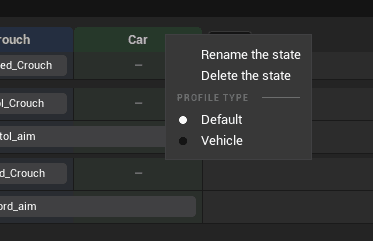
Once the character is seated on its mount or in its vehicle, it no longer walks: the Drive section takes over. It handles the seated pose and steering, with the upper body following turns and the body absorbing climbs and descents. ⚠ Drive ONLY exists on a Vehicle profile. To make a column one, right-click its header in the profiles table, then choose Profile type ▸ Vehicle. Only the columns you’ve created have this menu; the original Default column doesn’t.
There are two ways to author it, depending on the animations you have. The Mode row at the top of the tab has two buttons, Blend Space and Clips. Click the one you want: the other switches off, and the tab only shows what that mode needs. One of them is always active.
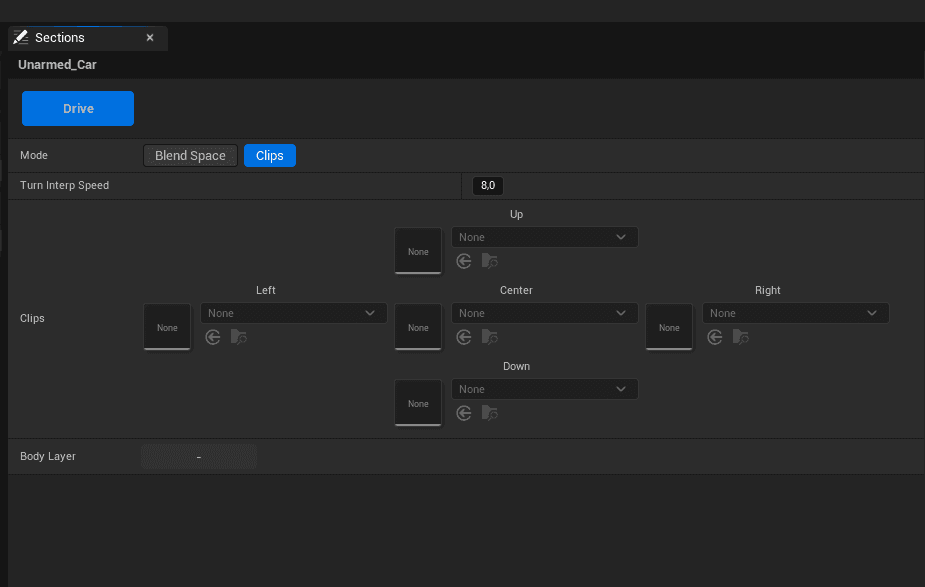
| Mode | What it needs |
|---|---|
| Use Drive Blend Space | A single 2D Blend Space that provides both the seated pose and the steering. X is the turn (-1 left, +1 right) and Y is the climb or descent (-1 going down, +1 going up). The plugin fills in both values itself, so there’s nothing to wire up. |
| Use Drive Clips | Five separate clips (Center, Left, Right, Up, Down), arranged in a star pattern in the tab. The plugin interpolates between them automatically. |
| Setting | What it does |
|---|---|
| Turn Interp Speed | How quickly the steering pose follows the actual steering. Lower values make the body lag behind the turn; higher values make it stick tightly to the handlebars. Used by both modes. |
| Body Layer | The additive layer on top, as in the other tabs: a raised hand, an injury. There’s only one cell here, because there’s no gait when seated. |
This section doesn’t decide when to get on the vehicle, only what plays once the character is on it. Getting on and off is triggered from your Blueprint: see “Getting on a mount or vehicle”.
Jump: jumping
Three moments, on three rows.
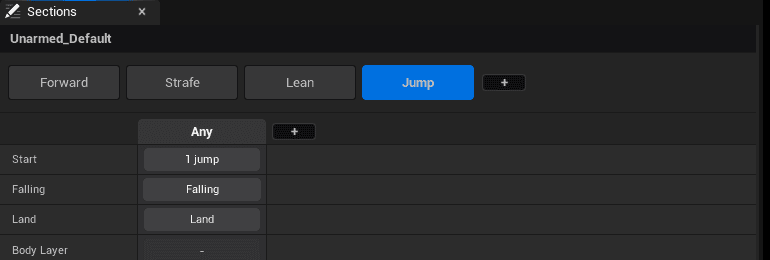
- Start: the take-off.
- Falling: the top of the jump, then the loop that plays on the way down.
- Land: the landing.
Any, or one column per gait
By default, the jump has a single column, Any: one animation, whatever the character’s speed. The + on the right adds gait columns if you want a different take-off when walking, running and sprinting.
This is also how you restrict jumping. If you only want a character to be able to jump while running, add the columns and disable the walk and sprint ones with a right-click: they keep their animations but no longer play.
The jump chain
The Start cell doesn’t say “Start” but “1 jump”: a character can have several jumps that chain together, such as a jump, then a double jump, then a third. Their order in the list determines which one plays.
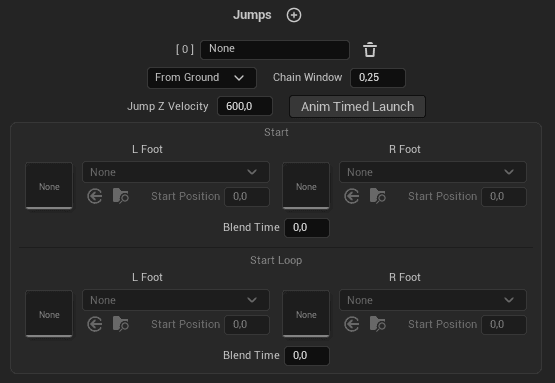
| Setting | What it does |
|---|---|
| Name | The jump’s name, such as “High jump” or “Double jump”. Helps you find it in the list. |
| From Ground / In Air / None | Where this jump can start from: the ground, or mid-air to chain on from the previous one. None keeps the jump configured but takes it out of the chain. |
| Chain Window | How long after landing this jump can still be chained. After that, the next press starts again from the first jump. |
| Jump Z Velocity | How high this jump goes, at this gait. |
| Anim Timed Launch | The jump takes off when the animation leaves the ground, not when the button is pressed, so the character builds up momentum before leaving the ground. |
| Takeoff Curve | The name of a curve in your clip that marks the frame where the character leaves the ground (0 = on the ground, above 0 = in the air). Without it, the plugin estimates this moment from the clip’s root motion. |
When you collapse a jump in the list, these settings stay visible; only its animation slots collapse. A thick line separates each jump from the next.
Start Loop
The take-off has two phases in the same card: Start, the push-off, and Start Loop, the loop that plays while the character is rising. It stops on its own at the top of the jump, so there’s no duration to set.
If you leave Start Loop empty, nothing else happens: the jump goes straight from the take-off to the top. It’s an optional phase, not a required step.
Blend Time and Play Rate
Below each pair of cells, Blend Time sets the duration of the blend into those animations, and Play Rate sets their playback speed: 1 for normal speed, 2 for twice as fast, 0.5 for half speed. There’s one value per pair, because both feet of the same move blend in the same way.
- Start and Start Loop, in the jump card.
- Apex and Falling Loop, in the Falling window.
- The landing, in the Land window: per gait, and per direction in strafe.
At 0, the cell doesn’t override anything, and the profile’s Phase Blend Time is used. Entering a value IS the setting: there’s no checkbox to enable.
With Anim Timed Launch, take-off always happens at the same point in the clip, whatever its playback speed. A sped-up Start therefore takes off earlier, and a slowed-down Start later.
Land Anticipation: starting the landing before contact
At the top of each card in the Land window, Land Anticipation sets the height above the ground (in cm) at which the landing starts. It can be set per gait. Without it, the landing starts on contact and always looks late. With it, the landing starts in mid-air and the contact happens right on time.
Heavy Land: a landing based on fall height
Each card in the Land window has two pairs of cells: Light, the normal landing, and Heavy, which plays after a big fall. Just below Land Anticipation, Heavy Land Height sets the height (in cm) from which Heavy plays. Like Land Anticipation, it can be set per gait.
With only the Any column, the Idle card applies to all landings: its Land Anticipation and Heavy Land Height are also used while moving. The same goes for a gait whose column is disabled.
The height is measured from the highest point reached in the air down to the ground where the character lands. So a jump that lands lower than where it took off, or a step off a ledge, counts the full fall.
In strafe, each compass direction also has its own Heavy pair, below the Light pair in the same card.
An empty Heavy cell plays the Light pair, and a Heavy Land Height of 0 never plays Heavy. Until you assign a Heavy clip, landings don’t change.
Land (Additive): an impact on top of the pose
Instead of a landing that replaces the pose, the Land window offers Land (Additive): an impact clip played on every landing, on top of the current pose. The run carries on, and the impact is layered over it. It’s the same slot in every card, and once it’s assigned, it replaces the Light and Heavy landings, whose cells are hidden.
Below it, Land Heavy (Additive) is the impact for big falls: it plays instead when the fall exceeds the gait’s Heavy Land Height. Each one has its own settings, shown once its clip is assigned: Blend In and Blend Out (the fade in and fade out), Play Rate, Weight (the strength of the impact) and Position (the point in the clip where it starts).
If you leave Land Heavy (Additive) empty, Land (Additive) plays instead, even after a big fall.
In Air: the character in mid-air
At the bottom of the Jump tab, the Jump Settings panel contains the In Air group, which controls what the character does during a jump or a fall. Each profile has its own settings: a crouched character can fall or steer differently.
| Setting | What it does |
|---|---|
| Air Rotation Speed | How fast the character turns in mid-air when the player changes direction. At 0, it keeps its facing until it lands. The Same As Ground button, on by default, uses the Rotation Speed from the Config panel. Has no effect when strafing, since the character follows the camera. |
| Gravity Scale | The gravity for this profile: the higher it is, the faster the character falls and the lower it jumps. At 0, the Gravity Scale from your Blueprint’s Character Movement is used. |
| Air Control | How much control the player has over the character in mid-air: at 0, it follows its initial trajectory; at 1, the player steers it completely. The From Blueprint button, on by default, keeps the Air Control from your Blueprint’s Character Movement. |
Traversal: getting over obstacles
Five moves, each on its own row.
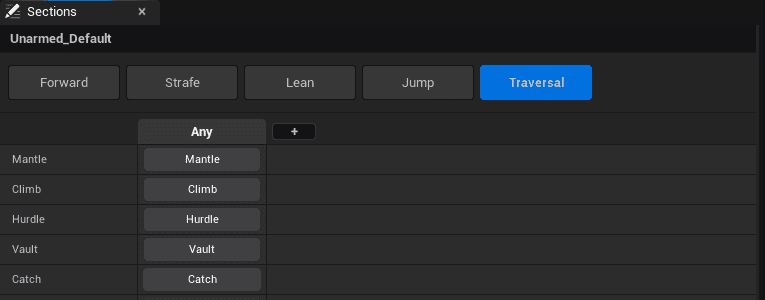
| Move | What it is |
|---|---|
| Mantle | Pulling up onto a ledge and ending up standing on it. |
| Climb | Climbing a wall taller than the character. |
| Hurdle | Going over an obstacle without stopping. |
| Vault | Pushing off a low obstacle and landing on the other side. |
| Catch | Grabbing a ledge while falling. |
The move panel
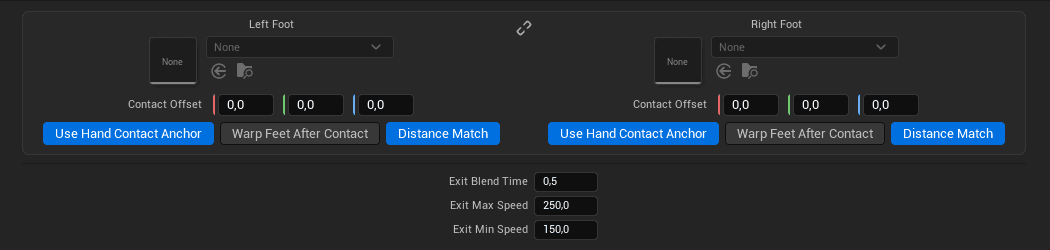
There’s one montage per foot, each with the settings that put the hands in the right place:
| Setting | What it does |
|---|---|
| Montage | The montage played for this variant. If it’s empty, the character jumps instead of traversing. |
| Contact Offset | Offsets the point on the edge that the hands aim for, in X, Y and Z. Use it when the hands consistently land too high or fall short. |
| Use Hand Contact Anchor | Aligns the animation so the hands grab the edge exactly. For a hurdle or a vault, when ticked, the hands are planted on the obstacle at the Traversal Contact notify frame; when unticked, the body passes over the middle of the obstacle. Untick it for a hurdle that doesn’t touch the obstacle. |
| Warp Feet After Contact | After the grab, also aligns the feet with the top of the obstacle. |
| Distance Match | Starts the montage at the point that matches the remaining distance, so the character doesn’t slide up to the obstacle. |
The two notifies to add to your montages
These settings rely on the plugin knowing two things about your montage: the frame where the character is on the obstacle, and the frame where the move is finished. It reads them from two notifies that you add yourself in the montage editor. Both are optional; without them, the plugin estimates these points, but less accurately.
| Notify | What it marks |
|---|---|
| Traversal Contact (Mantle Hand Plant) | The frame where the character is on the obstacle: hands planted on the edge for a mantle, climb or vault, or passing over the obstacle for a hurdle. The plugin uses it for two things. First, it starts the montage at the point where the approach distance left in the clip equals the actual distance to the obstacle, so the character closes the gap at its own speed, without sliding, and reaches the obstacle exactly on that frame. Second, it reads the hand positions at that frame and uses them as the hands’ IK targets. Without this notify, a mantle or climb always starts from the beginning, with the correction spread over the whole clip; a hurdle or vault aligns on the frame where the character leaves the ground. |
| Traversal Recover (Mantle Exit Point) | The frame where the move is finished and the pose is stable. Until that frame, the traversal can’t be interrupted. From that frame on, the player gets control back and the end of the montage (its walk-out or run-out) is replaced by actual locomotion: with no input, the character stops; with input, it moves off; and it can jump. Without this notify, the plugin estimates this point: the end of the climb-up for a mantle or climb, the landing frame for a hurdle, the top of the jump for a vault. If you place it before the character is in position (before the top of the jump in a vault, for example), it only takes effect from that point. |
Place the contact on the frame where the hands actually touch, not where they’re reaching for the edge. For a hurdle that doesn’t touch, place it where the character is above the obstacle. That’s the point that gets aligned with the obstacle. And place the recover on a clean pose: the blend into locomotion starts from there, and the pose shows exactly as it is.
The exit
| Setting | What it does |
|---|---|
| Exit Blend Time | The duration of the blend out of the move. |
| Exit Max Speed | The maximum speed the character carries out of the move. Lower it if the character travels too far after getting over the obstacle. |
| Exit Min Speed | The speed given on exit even from a standstill, so the character doesn’t get stuck on the obstacle. |
You don’t have to provide everything
Each move exists per gait and per foot, but two fallbacks save you unnecessary work: an empty sprint cell uses the run one, and an empty standstill cell uses the walk one. Start with the run clips.
| Setting (Config) | What it does |
|---|---|
| Move Speed Threshold | Above this speed, the character uses its moving clips instead of its standstill clips. |
| Forward Trace Distance | How far ahead the character looks for a wall, in centimetres. |
| Catch Approach Speed | The minimum speed towards the wall needed to grab a ledge: the character has to be moving towards it, not along it. |
| Catch Max Rise Speed | The maximum vertical speed for grabbing a ledge: the character catches it on the way down, not on the way up. |
| Hurdle Max Land Drop | The maximum drop allowed on the far side. Beyond that, the character doesn’t go over. |
Weapons
A weapon isn’t an animation, it’s a profile. Add a row in the Profiles panel, give it a name, and a cell appears where the weapon meets the posture.
Right-clicking that cell brings up the most important decision in the whole system:
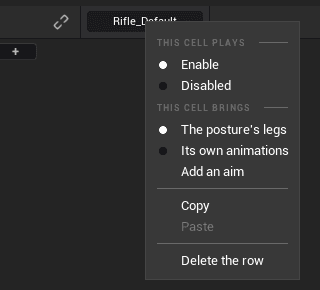
| Option | What it does |
|---|---|
| The posture's legs | The weapon only provides poses. The legs, starts, stops and all the movement come from the unarmed row. This is the default, and the right choice in most cases: a weapon changes the upper body, not the way the character walks. |
| Block traversal while equipped | Disables mantle, climb, vault and catch while this weapon is equipped. Useful for a two-handed weapon or a carried object. Only appears under The posture's legs: a weapon that plays its own animations already sets up Traversal in its own grid. |
| Its own animations | The weapon plays its own movement animations. Only use this for weapons that really change the way the character moves. |
| Add an aim | Creates the aiming pose for this weapon, on a sub-row. |
| Enable / Disabled | Switches the cell off in game without erasing anything. |
Equip: drawing and holstering
On a weapon profile, the section menu offers Equip and no longer offers Lean.
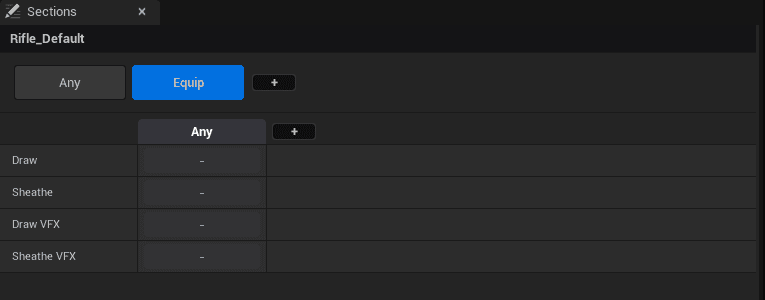
- Draw: the montage played to draw the weapon.
- Sheathe: the montage played to holster it.
- Draw VFX and Sheathe VFX: the effects that go with them.
These montages exist per gait: drawing on the run isn’t the same as drawing at a standstill. An empty gait cell uses the standstill one.
The moment the character actually switches weapons is marked in the montage itself, by a notify placed on the frame where the hand closes around the weapon. Without a notify, the switch happens as soon as the montage starts.
Aiming
Add an aim creates a sub-row under the weapon, with its own cell. It’s the same weapon in a different state.
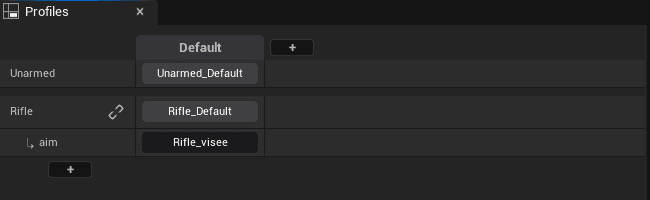
Aiming is authored in a single cell, in the Any tab. This is by design: aiming is a pose, not locomotion. It’s layered over whatever the character is already doing (walking, running, jumping) without replacing it.
A link icon on the aiming row ties it to the weapon’s row by default. Open the link to make it independent: the weapon can then vary its animations per posture while keeping a single aim shared across all of them, or the other way around.
| Setting | What it does |
|---|---|
| Aim Interp Speed | How quickly the upper body follows the camera. Higher values make it stick closely; lower values make it lag behind. |
| Aim Mode Blend Time | The duration of the blend when the aiming pose changes. |
| Aiming Forces Strafe | While aiming, the character faces the camera. Untick it to let the character aim while keeping its running direction. |
Layer order
- 1The posture provides the legs and the movement.
- 2The weapon adds its poses on top.
- 3Aiming adds its own poses on top of that.
Each layer only adds what it actually contributes. That’s why adding a weapon doesn’t force you to re-author a full locomotion set, and why a setting that seems to have no effect on a weapon often comes from the layer below.
Body Layer: body layers
Body Layer adds poses on top of the locomotion: heavy breathing after a run, an injured shoulder, a clenched hand. These don’t belong in a run cycle; they need to be able to come and go during any cycle. Several layers can be stacked.
| Setting | What it does |
|---|---|
| Mode | Where the pose comes from: a clip, a blend space, or nothing. |
| Blend | Additive: the animation is added on top of the locomotion, and requires an additive clip. Replace: the affected bones take on the pose, and require a regular clip. |
| Branch Filters | The bones this layer affects. |
| Driven By | What drives the layer: the effort calculated by the plugin, or a value sent by your game. |
| Rise Time | How long the layer takes to reach full strength. |
| Fall Time | How long it takes to drop back to zero. This is what lets the character catch its breath after running. |
| Weight | The layer’s weight when its driver is at maximum. |
| Weight At 0 | Its weight when the driver is at zero. Around 0.3 for breathing that continues at a standstill. |
| Play Rate | The playback speed. At 0, the layer holds a single pose: the one at Start Position. |
| Max LOD | The level of detail beyond which the layer stops. -1 to never stop it. |
To drive a layer from your game, give it a Custom Name, then call Set Body Layer Input with that name to send it a value. This way you can hook an “injured” layer up to your health bar without the plugin needing to know anything about your game.
The Config panel
These settings apply to the whole character, whatever the weapon or posture. You only touch them once, during setup.
| Group | What it controls |
|---|---|
| Bones | The bones the plugin uses: the left foot and the right foot. They’re used to chain clips without the legs popping, to know which foot a traversal starts on, and for foot IK. |
| Mirror | The skeleton’s mirror table, and Auto-Mirror Missing: when a clip is missing on one side, the clip from the other side plays mirrored. |
| Debug | In-game diagnostic displays. |
| Motion | Rotation Speed (under Root Bone): how fast the character turns towards the direction it’s moving in; higher values turn faster. Also the optional curves for remaining distance and rotation, for when your clips have no root motion. |
| Blends | The blend durations between states. |
| Reface Warp | The rotation correction applied during a reface. |
The two bone settings are the most important in the panel: if they’re wrong, clip transitions pop and traversals start on the wrong foot. They’re filled in automatically if your skeleton follows Unreal’s naming conventions.
The inputs are already wired up
Everything covered so far is set up in the editor, with no code. This page covers the other half: what your Blueprint can ask the character to do. The Locomotion LF component, on the Blueprint you created at the beginning, exposes everything described below.
The Blueprint created for you already wires up the ten actions in the Input folder. You don’t need to do anything for the character to respond to the controller; this table is here so you know where to look if you want to change something.
| Action | What the Blueprint calls |
|---|---|
| IA_Move | Move: both stick axes, relative to the camera. |
| IA_Look | Look: the camera. |
| IA_Jump | Jump Pressed on press, Jump Released on release. |
| IA_Walk | Set Walk Requested. |
| IA_Sprint | Set Sprint Requested. |
| IA_Strafe | Set Strafe Mode, plus Set Strafe Focus / Clear Strafe Focus for the target. |
| IA_Aiming | Set Aiming: true on press, false on release. |
| IA_Equip | Next Weapon: the next weapon among those the player owns. |
| IA_Crouch | Set Axis State to the crouched posture, then Crouch / UnCrouch. See “Postures”. |
| IA_Mount | Find Mount by Trace to find the vehicle in front of the character, then Mount Onto Animated. See “Getting on a mount or vehicle”. |
These actions are your own copies, in the character’s Input folder. Remap the keys however you like: you never have to touch the plugin itself.
What it looks like in the graph
The pattern is always the same, and it takes just three nodes: the input action, the component and the function. Movement is the typical example.
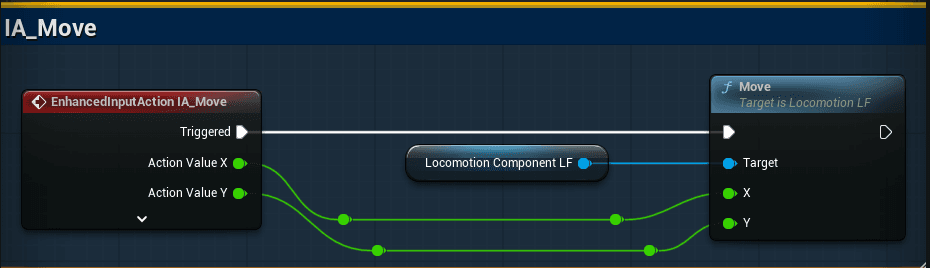
The blue “Locomotion Component LF” node is simply the component dragged in from the Components list. It is what you connect to the Target input, and you’ll see it in every one of these graphs.
Some actions need two outputs from the event instead of one. Jumping is the typical case: pressing and releasing call two different functions.
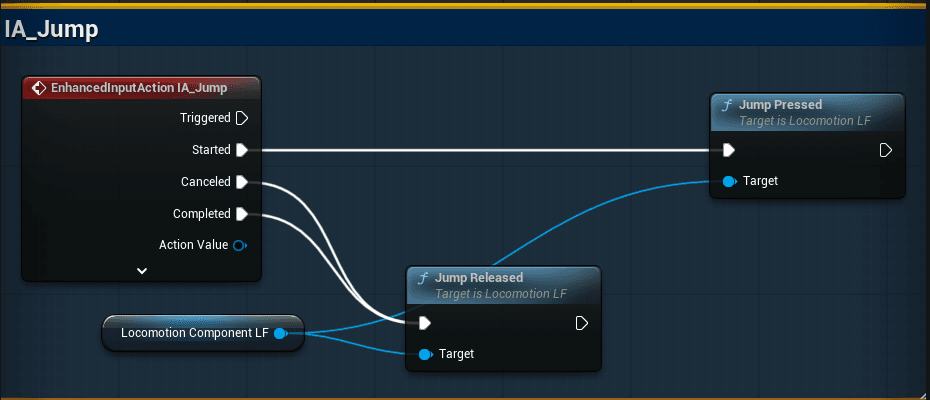
There’s one thing these graphs don’t show: at startup, the Blueprint adds its input mapping to the player (Add Mapping Context on Begin Play). Without it, none of these actions trigger. The character created for you already does this.
Movement
| Function | What it does |
|---|---|
| Move (X, Y) | Moves the character. X = right, Y = forward, relative to the camera. |
| Move Arc (X, Y, Turn Rate) | The variant for quadrupeds, where instant turnarounds aren’t allowed. The character keeps some forward motion and turns around in an arc, like a real animal. |
| Look (X, Y) | The camera. |
| Jump Pressed / Jump Released | Jumping. The release matters: it’s what allows short jumps. |
Choosing the gait
| Function | What it does |
|---|---|
| Set Walk Requested (bool) | Requests walking for as long as it’s true. |
| Set Sprint Requested (bool) | Requests sprinting for as long as it’s true. |
| Set Gait (gait) | Forces a gait and applies its speed, bypassing automatic gait resolution. |
Strafing
| Function | What it does |
|---|---|
| Set Strafe Mode (bool) | Enters or exits strafe mode. |
| Set Strafe Focus (actor) | Sets a target to keep in view. As long as the target is valid and strafing is active, the body faces it instead of following the camera. |
| Clear Strafe Focus | Releases the target. |
| Is Strafing | True if the character is strafing. |
Weapons
| Function | What it does |
|---|---|
| Toggle Weapon (armed, unarmed) | The simplest entry point: draws the weapon if it isn’t active, holsters it otherwise. Montages and effects are handled for you. |
| Equip Weapon (profile) | Equips a specific weapon. |
| Next Weapon (allowed weapons, step) | Switches to the next weapon in the cycle. This is how you unlock weapons during a game: you set up every weapon in advance, and only pass in the ones the player owns. A step of -1 selects the previous weapon. |
| Set Aiming (bool) | Starts or stops aiming. |
| Get Active Weapon / Is Aiming | The current state, for your UI. |
Showing the weapon mesh
The plugin doesn’t spawn any meshes: it plays the animations and switches profiles. Attaching or hiding the weapon is up to you, but the plugin tells you exactly when to do it.
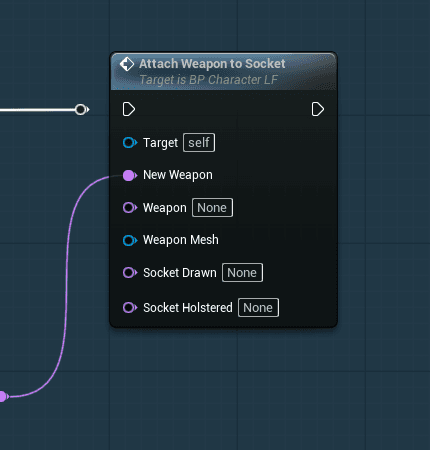
At the bottom of the graph, the input calls Next Weapon. This is one example of how to switch weapons (mouse wheel, gamepad D-pad), not a requirement: build your own with the functions below. At the top, Bind On Weapon Changed binds to the component’s On Weapon Changed event. That event provides the new weapon’s name directly (New Weapon), which is passed to Attach Weapon to Socket to attach the right mesh.
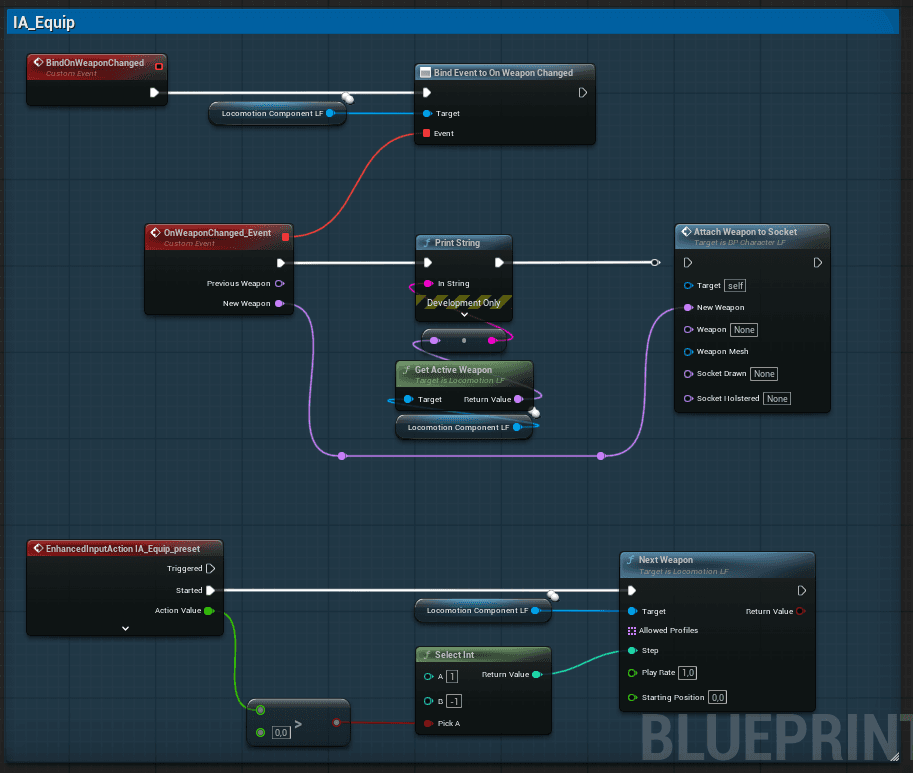
Next Weapon simply cycles through a list: with Allowed Profiles = [Pistol, Rifle] and Step = 1, each press switches to the next weapon. It’s only one approach among many; the plugin provides several functions for building your own.
Equip Weapon: equipping a specific weapon
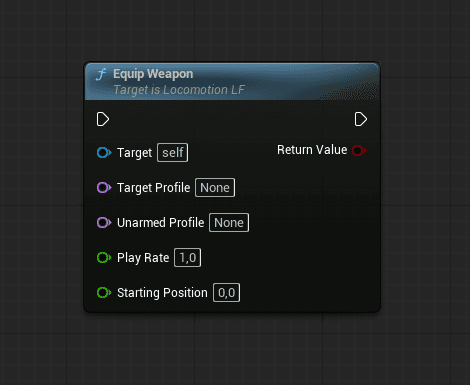
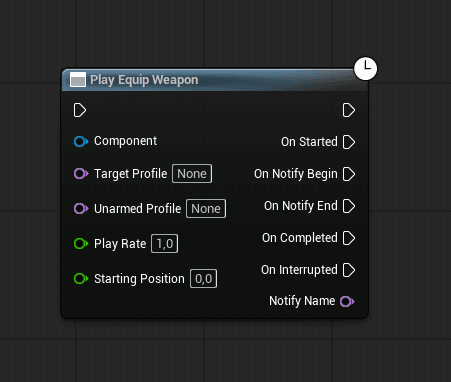
To equip a specific weapon instead of cycling through the list (for a weapon wheel, or one key per weapon), use Equip Weapon. Target Profile is the weapon to equip (“Rifle”, for example). Leave Unarmed Profile at None so it’s resolved automatically from the DataAsset.
Toggle Weapon: one button to draw and holster
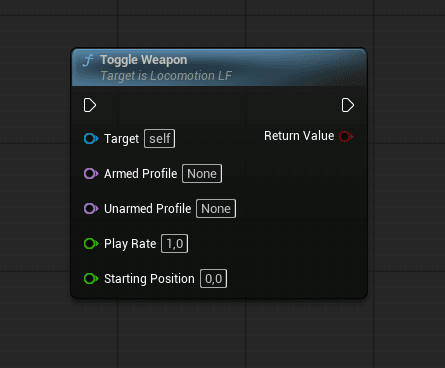
For a single button that draws the weapon if it isn’t active and holsters it otherwise, Toggle Weapon is all you need. Armed Profile is the weapon; leave Unarmed Profile at None so it’s resolved automatically.
Attach Weapon to Socket: the ready-made function
In the character created for you, this function does the work. One call per owned weapon is all it takes to show or stow every weapon. Weapon is the weapon this call handles (“Rifle”), and Weapon Mesh is its mesh. If New Weapon matches Weapon, the mesh is attached to Socket Drawn (in hand); otherwise, to Socket Holstered (stowed on the body). Duplicate the call for each weapon, changing Weapon, Weapon Mesh and the two sockets.
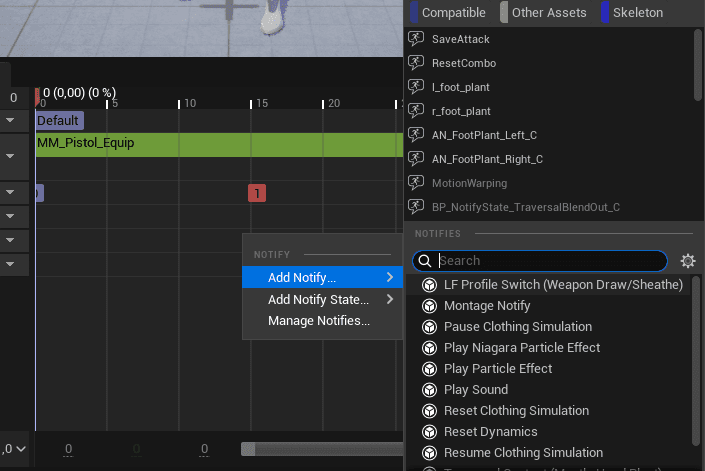
The LF Profile Switch notify: syncing the switch to the animation
By default, the weapon switches (and On Weapon Changed fires) as soon as the draw or holster montage starts. To sync the switch to the frame where the hand closes around the weapon, add the LF Profile Switch (Weapon Draw/Sheathe) notify to the montage on that frame. The switch then waits for the notify instead of happening right away. If the montage has no such notify, or if there’s no montage at all, the switch is still immediate.
Waiting for a draw to finish
Play Equip Weapon is designed for people used to Play Montage who would rather not use the dedicated functions (Equip Weapon, Toggle Weapon). It draws, holsters or switches weapons exactly as they do, but has the same outputs as Play Montage: On Started, On Notify Begin, On Notify End, On Completed and On Interrupted.
Postures: crouched, flying, anything you want
A posture is a column in the profiles table. You can create as many as you like (crouched, injured, flying) and switch to them from your Blueprint:
| Function | What it does |
|---|---|
| Set Axis State (axis, value) | Sets the value of an axis. The default axis is “Posture”, and the value is the column name, for example “Crouch”. An empty value clears the axis and returns to the default posture. |
| Get Axis State (axis) | The current value of that axis. |
| Set Locomotion Profile (name) | Switches directly to a profile by name. |
| Get Active Profile Name | The active profile. |
The switch isn’t abrupt: the animations for the new combination load in the background, and the character only switches once they’re ready. Until then, it keeps playing what it was already playing.
Example: the Crouch posture
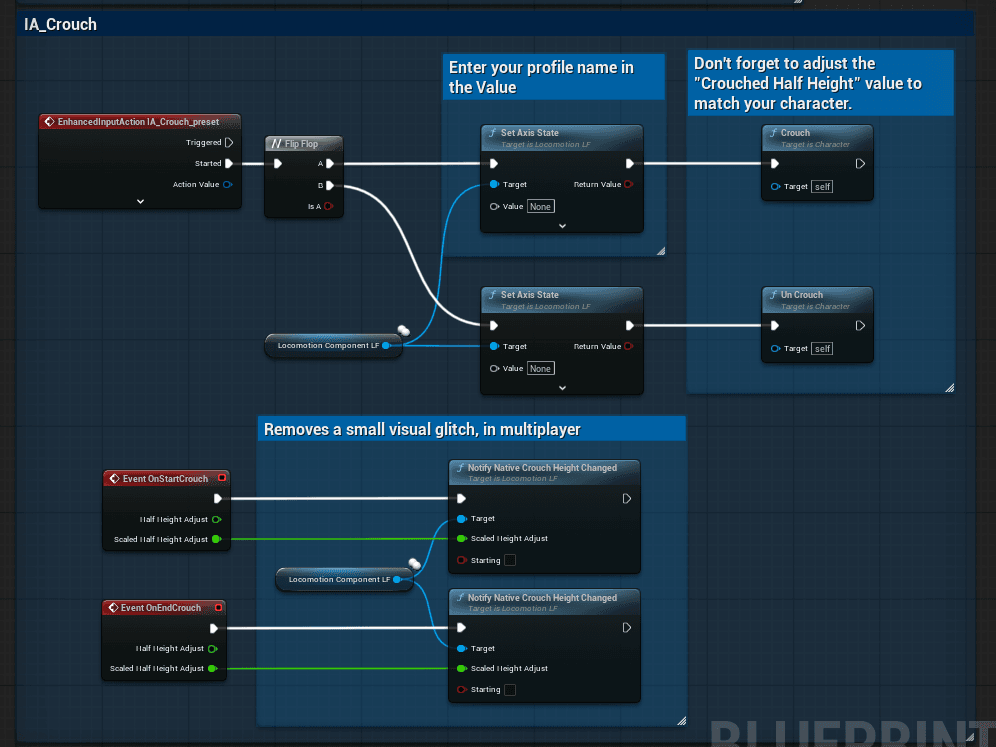
Setting the axis only changes the pose that plays. The collision capsule belongs to Unreal, not to the plugin. So the Blueprint makes two calls in a row: Set Axis State (“Posture”, plus your column name, for example “Crouch”) for the pose, then Crouch / UnCrouch, the character’s native functions, so the capsule actually changes size.
The character created for you already wires up this example on IA_Crouch: a Flip Flop alternates between two branches on each press. The first branch calls Set Axis State with the name of the profile you created in the Profiles tab (“Crouch”, for example), then Crouch. The second calls Set Axis State with the value left at None, to return to the default posture, then UnCrouch.
The name you pass to Set Axis State must exist as a column in the Profiles table (in the Profiles tab). That’s where you add it, using the + at the top.
Remember to set Crouched Half Height, a native Unreal setting (in Character Movement on your Blueprint), to your character’s actual height when crouched. A value that doesn’t match your animations makes the character float, or sinks its feet into the ground.
In multiplayer, a character you don’t control can pop slightly at the exact moment it crouches or uncrouches. To prevent this, connect Notify Native Crouch Height Changed to the character’s native Event On Start Crouch and Event On End Crouch, wiring in their Scaled Height Adjust output. Leave Starting set to false in both cases.
Driving a Body Layer
| Function | What it does |
|---|---|
| Set Body Layer Input (name, value) | Feeds a layer set to “Custom” a value only your game knows: health for an injury, temperature for shivering. The name must exactly match the layer’s “Custom Name”, and the value ranges from 0 to 1. |
| Get Body Layer Input (name) | The current value. |
Getting on a mount or vehicle
The character created for you already knows how to mount: the IA_Mount action is wired up and included in the character’s Input folder. There’s just one rule to remember: the RIDER does the mounting, the VEHICLE gets mounted, and each one handles its half of the work.
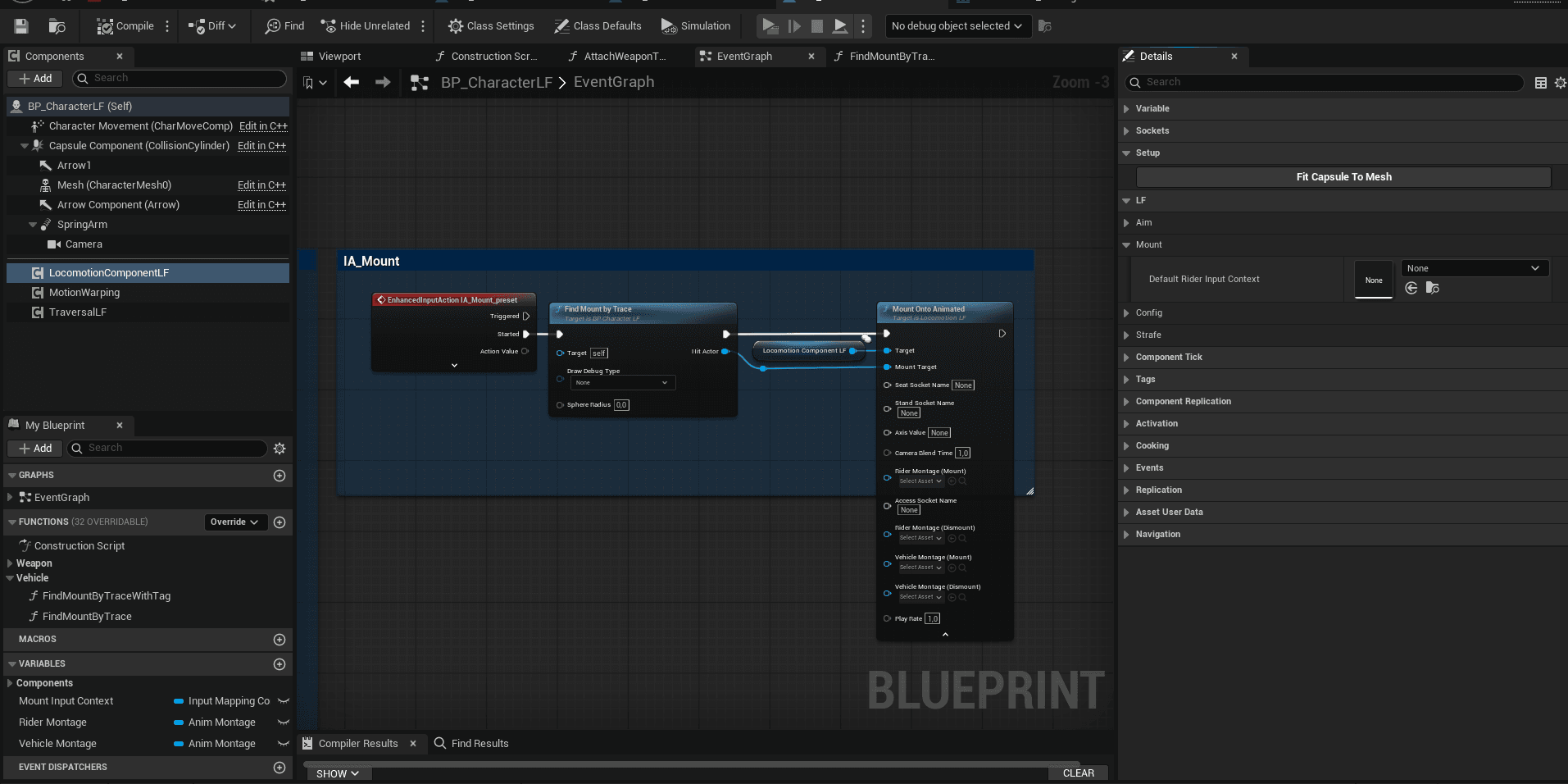
The detection provided, Find Mount by Trace (a sphere trace in front of the character), is only an EXAMPLE. Replace it with whatever your game needs: a trigger volume, a list of nearby objects, a UI button. All that matters is knowing WHICH actor the character wants to get on, and passing it to Mount Onto Animated.
The vehicle needs a Rideable LF component
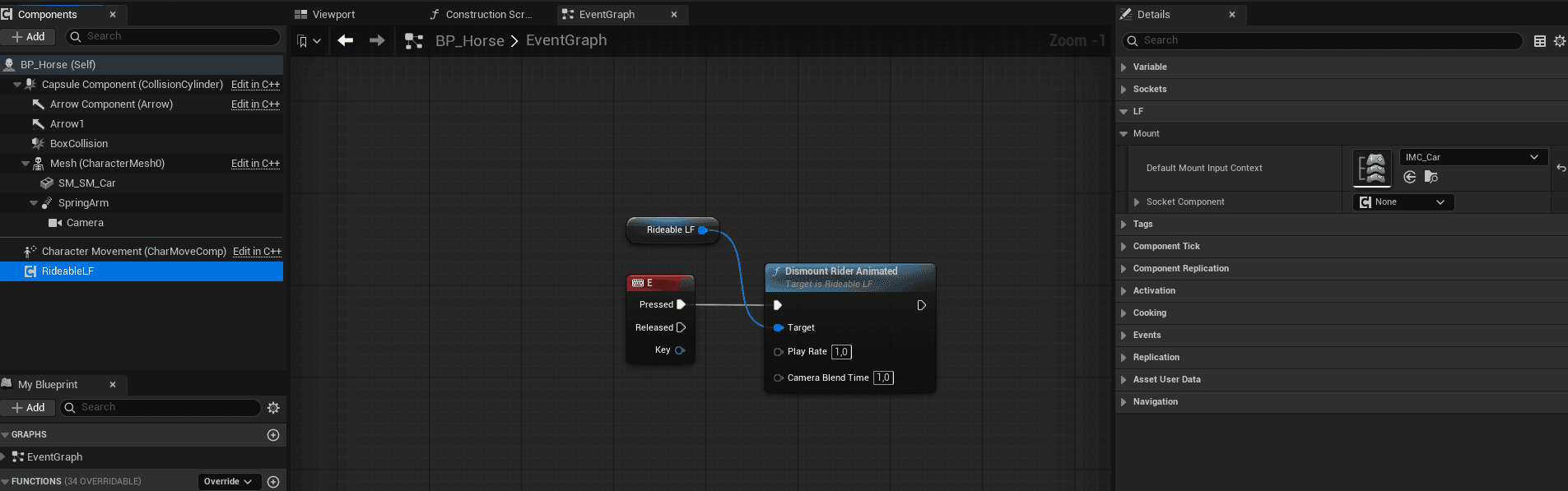
Add the Rideable LF component to whatever gets mounted: the horse, the car, the platform. This component is what grants permission; without it, mounting does nothing at all. It also holds the vehicle’s input mapping (Default Mount Input Context), which the player receives while on the vehicle. Without it, the player ends up seated with no controls.
What Mount Onto Animated needs
| Input | What it’s for |
|---|---|
| Mount Target | The actor to get on: the one your detection found. It can be any actor, as long as it has a Rideable LF component. |
| Seat Socket Name | The seat socket, where the character ends up sitting. |
| Stand Socket Name | Where to set the character down when dismounting, if no animation moves it away from the vehicle. |
| Axis Value | The posture to switch to once seated, for example “Car”. This is the name of a column in the profiles table: the one where you authored the character’s driving animations (see the Drive section). |
| Camera Blend Time | How long the camera takes to blend to the vehicle. Set it to 0 for a hard cut. |
| Rider Montage (Mount) / (Dismount) | The character’s animations for getting on and getting off. |
| Access Socket Name | The door socket. The approach heads for this point first, then continues to the seat. |
| Vehicle Montage (Mount) / (Dismount) | Animations played on the VEHICLE itself, such as the door opening. They are synced to the door notify. |
| Play Rate | The animation’s playback speed. |
When the Character Factory creates the character, all of these fields are empty, and mounting already works: the character is placed in the seat instantly. So start by filling in the only one that really matters, Seat Socket Name, and add the animations only once you have them.
The two montage notifies
| Notify | Where to place it |
|---|---|
| LF Mount Access Point | On the character’s animation, at the frame where its hand reaches the door. This is when the vehicle’s animation starts. |
| LF Mount Handoff | At the frame where the character is actually seated. This is when it attaches to the vehicle and you get control back; until then, you watch the character get on without being able to move. |
Riding, and getting off
Once the character is seated, the plugin handles everything below without you having to ask.
| What happens automatically | When |
|---|---|
| The rider no longer blocks its vehicle | As soon as the function is called, even before the approach. Otherwise, the vehicle would collide with its own driver’s body and sink into the ground as it moved. The rider can still be hit by the rest of the game: a shot at someone on horseback still lands. |
| The rider’s collision capsule is disabled | On attach, once the rider is actually seated. Not before, since the character walks there on foot. |
| Foot placement is disabled | Also on attach, and it comes back on when getting off. The feet are no longer on the ground, so your Foot Placement has nothing to find there. To choose the exact moment in your animation, add the LF Foot Placement Off and LF Foot Placement On notifies. The LF Foot Placement Alpha node carries this cut-off: connect it to the Alpha of your Foot Placement and of your Leg IK. |
| The rider’s posture changes | If you filled in Axis Value: the rider switches to the profile where you authored its seated animations. |
| Everything is replicated | In multiplayer, other players see the character get on, ride and get off. There’s nothing to configure. |
Getting off
⚠ Getting off is triggered from the VEHICLE, not from the character. This is the part that catches people out: once mounted, the player possesses the vehicle, so the character’s inputs no longer respond. That’s why the key that makes the rider get off lives in the vehicle’s Blueprint: it’s the E shown in the screenshot above.
| Function | What it does |
|---|---|
| Dismount Rider Animated | THE function to use. Called on the vehicle’s Rideable LF, it finds whoever is riding by itself and makes them get off, replaying the animations you passed in when mounting. There’s nothing to keep track of on your side. |
| Dismount Animated | The same dismount, but called on the RIDER’s component. Only useful if your game already holds a reference to it. |
Talking to the rider from the vehicle
Get Current Rider returns the actor seated on the vehicle. Use it to cast to your own character class and ask it whatever you need.
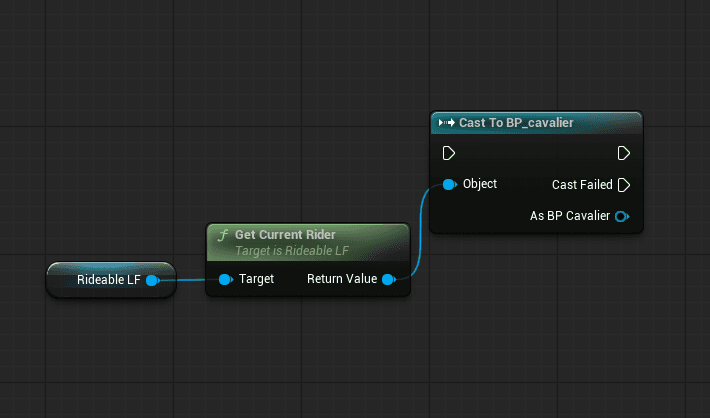
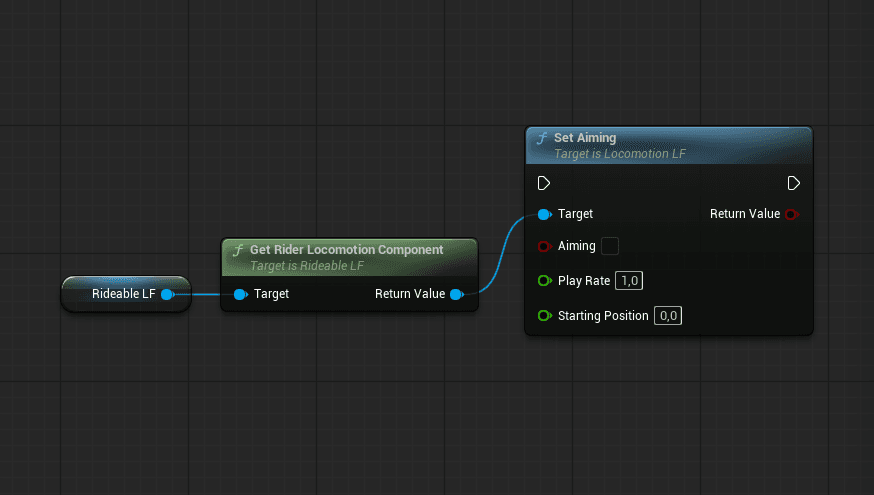
Get Rider Locomotion Component goes one step further: it returns the rider’s locomotion component directly, which gives you access to everything the character can do. That’s how you make the rider aim from the vehicle, with Set Aiming. Connect it to the mount’s aim input, because the mount is what the player is controlling.
Rotating the character from your own code
Two functions for systems that sometimes need to set the character’s rotation themselves (an attack aimed at a target, a cutscene, a physics-driven rotation) without the framework trying to correct it afterwards.
| Function | What it does |
|---|---|
| Set External Rotation Lock (bLocked) | Stops the character from rotating on its own while something else controls its facing (climbing, a mount, an attack aimed at a target…). Set it back to false when you’re done. |
| Resync Facing | Call it once after you’ve rotated the character yourself outside the plugin (an aimed attack, a cutscene…), to avoid a visual snap or a spurious turn in place when normal movement resumes. |
In the Animation Blueprint
Two nodes are available on the animation side, for when you add your own layers after the plugin’s node.
| Node | What it provides |
|---|---|
| LF Locomotion State | The full locomotion state: speed, gait, strafe, angles. Pull out the property you need and connect it to the pin you want to drive. That’s how a Stride Warping node gets its Locomotion Speed. |
| LF Foot Placement Alpha | A value between 0 and 1 that you connect as is to the Alpha of your Foot Placement, and of your Leg IK. It is 1 during normal locomotion and drops towards 0 during a traversal, while the plugin itself holds a foot against the wall (whichever foot is more engaged sets the value). There’s no need to invert it. Without it, your foot placement and the plugin’s fight over the foot, which then jitters against the obstacle. It stays at 1 if Use Foot IK is unticked in Config. |